Assistive-style floating control for Android with screen recording
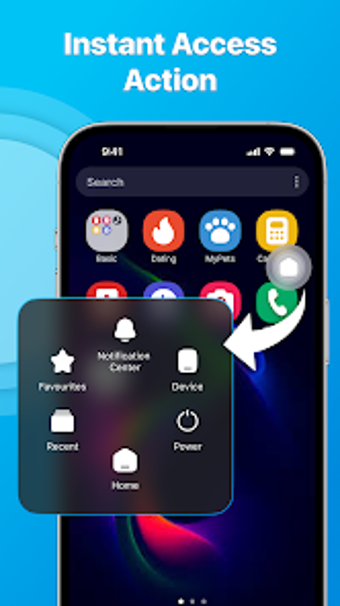
Touch Control & Access Panel from DTL Group is an Android utility that replaces hardware buttons and centralizes system actions for one-handed use. The app delivers a persistent floating button that opens a customizable access panel, offering virtual navigation, quick toggles, and integrated screen capture. Its key strengths are virtual Home/Back/Recents, one-tap system controls, and visual customization options. The target audience is users with large phones, failing hardware keys, or anyone seeking faster on-screen access to common system functions.
What does Touch Control do and when is it useful?
Touch Control provides a persistent on-screen shortcut that brings up a compact control panel from any app, intended to replace physical buttons and centralize common actions. The app supplies virtual navigation buttons for Home, Back, and Recent Apps, quick-setting toggles for Wi-Fi and Bluetooth, and a built-in screen recorder with audio. That combination addresses data-entry scenarios where one-handed operation or broken keys impede normal device control.
Does the app slow down your device during normal use?
The app is described as lightweight and designed to stay on top of other apps without heavy overhead, which aligns with reports of smooth operation during everyday tasks. Background presence uses accessible overlay mechanisms rather than constant foreground processing, so typical interactions should not impose continual CPU load. Recording or high-definition screen capture, however, uses additional CPU and storage while active, so performance impact appears task-dependent.
Is Touch Control safe to run on a primary device?
The tool requests Accessibility Service permissions to perform global actions such as Back, Home, and screen lock; that permission is necessary for its core functions. For the lock-screen option it can request Device Administrator status, which must be revoked before uninstalling. These explicit permission requirements mean the app operates with elevated control over input and system actions, so users should enable only the features they need.
Do I need technical knowledge to set it up and use it?
Basic setup requires enabling Accessibility Services and, optionally, Device Administrator for the lock feature; the app offers personalization for icon, size, and layout so non-technical users can adapt appearance. Advanced uses like adjusting recording quality or assigning multiple toggles demand familiarity with system permissions and storage management. Casual users can run the default panel with minimal configuration, while power users can tailor many visual and functional options.
Practical recommendation for hardware-limited and accessibility-minded users
Touch Control is a practical option for Android users who need virtual navigation and consolidated system toggles, particularly when physical buttons are faulty or single-handed operation matters. Permission requirements are explicit and necessary for its features, so a cautious permissions review is advisable before enabling all modules. For people who want an on-screen control cluster plus an integrated recorder, it is a solid, usable choice. Recommended.